

Drive One 3 Manual EN

Setup Drive One in the Drive One app
Start the Drive One app and follow the instructions on the screen.If you want to read about how to setup Drive One before you do it, please continue here.
The setup process
Follow these steps to setup the Drive One device.
Collapsible content
Enter your email address
An email is then sent to the email address you entered.
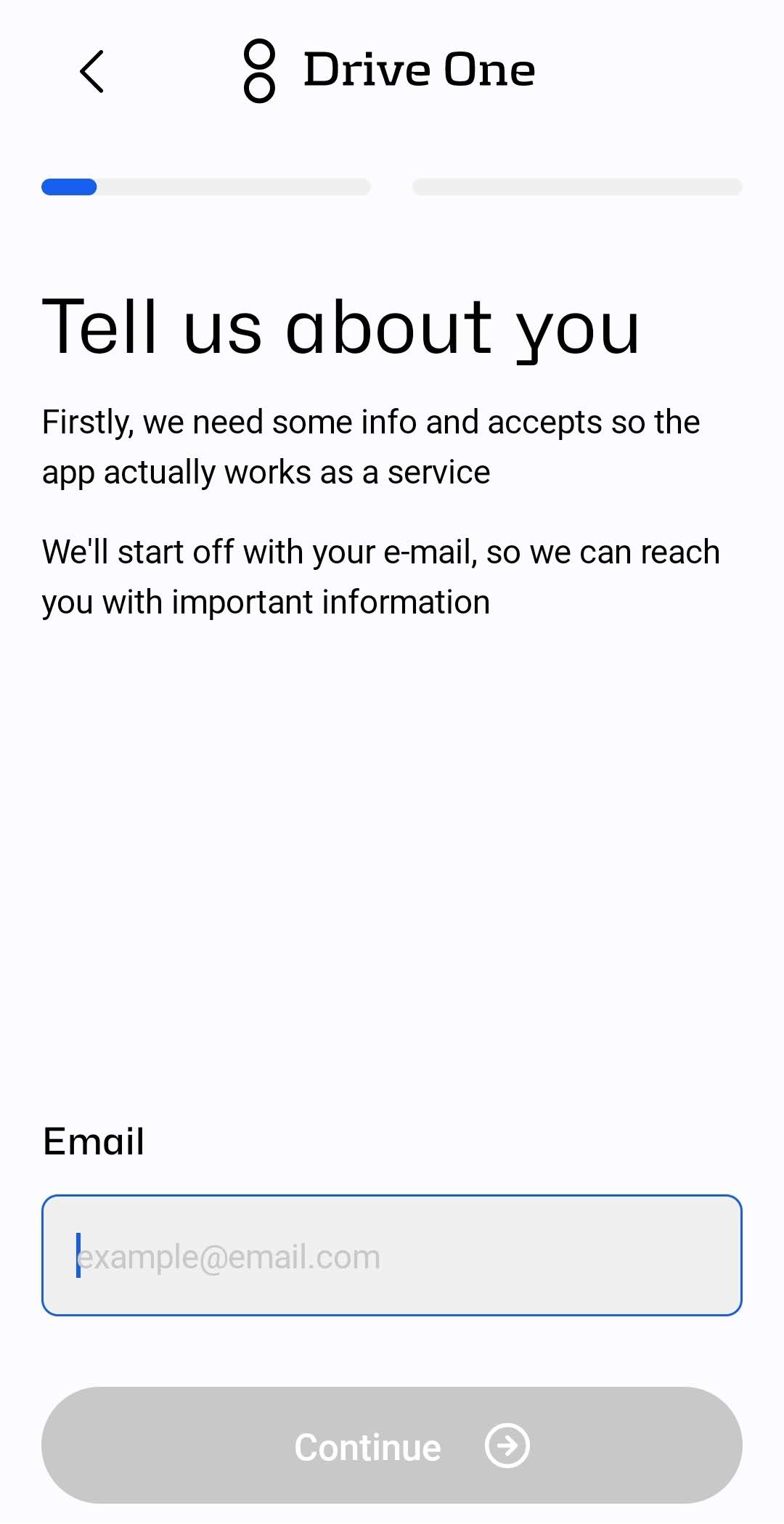
Confirm your email address
The email contains a verification code that you need to enter on this screen to confirm that your email address is valid.
When you continue, you can choose whether to accept or decline emails with news, tips, and tricks from us.
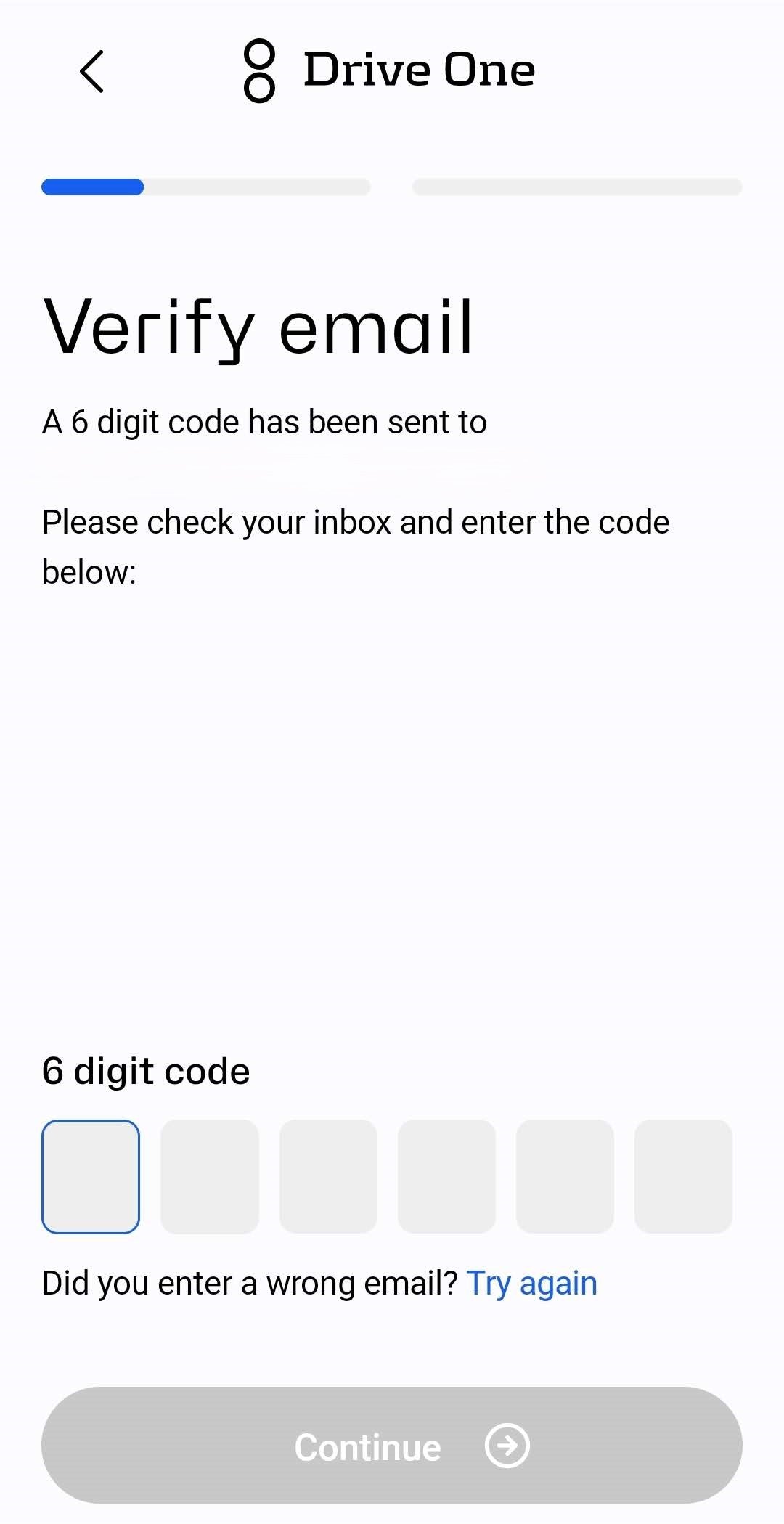
Marketing Accept and Privacy Policy link
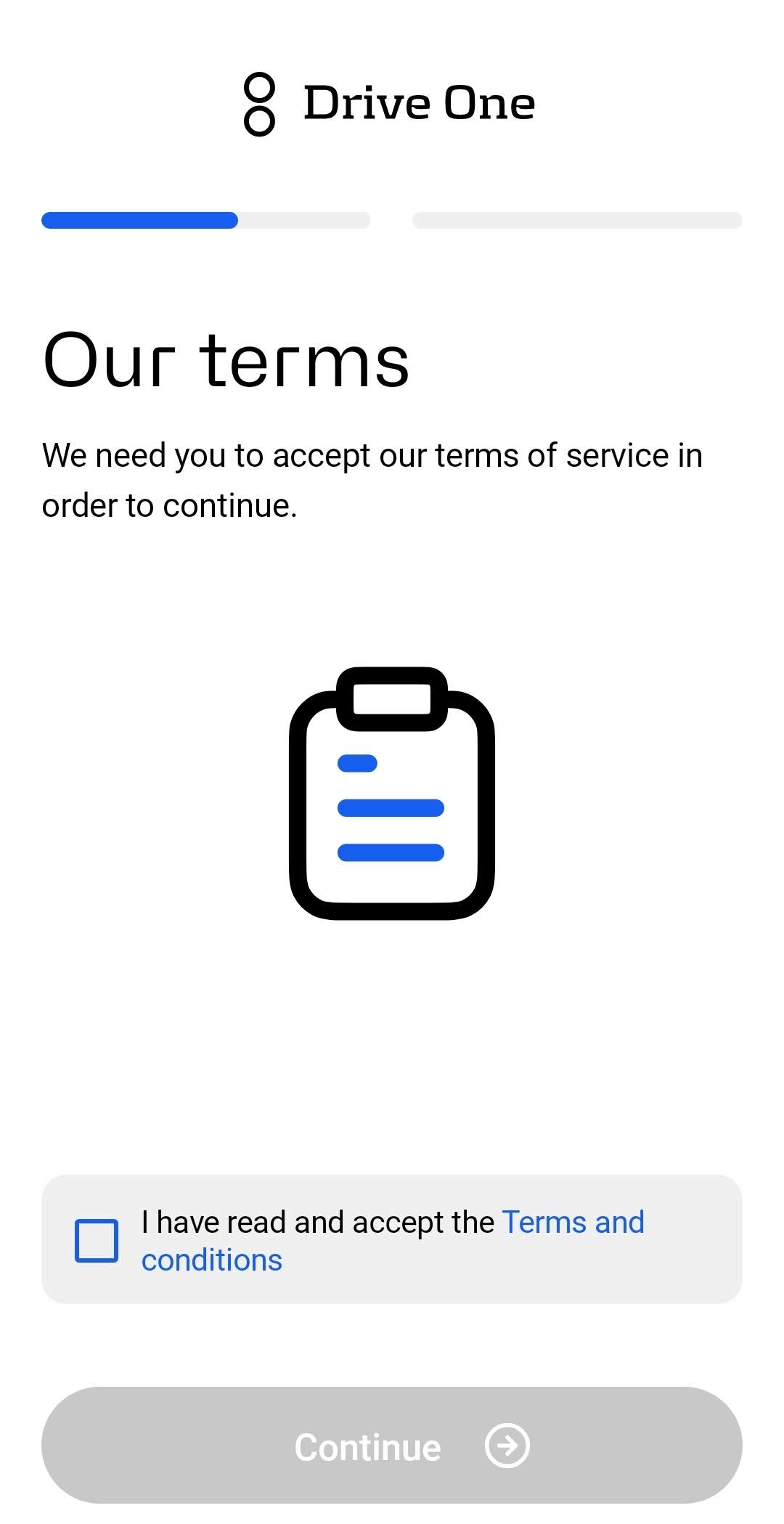
Accept terms and conditions
You must accept the terms and conditions to use the Drive One app and continue.
If you do not accept them, you will not be able to start and use the app.
Grant permissions
On this page, you will be prompted to:
- Allow the Drive One app to access your location
- Allow notifications
- Enable Bluetooth
- Disable battery optimization (Android only)
These permissions are required for Drive One to work as expected and to ensure reliable warnings while driving.

Ready for connection
You are now ready to connect your Drive One unit to the Drive One app.
Select the device you want to set up from the list.
If your Drive One 3 device is turned off, press and hold the “top button” for 5 seconds to power it on.


Connected Page
Your Drive One device is now connected to the Drive One app.

Quick app tour start
Now the app will take you for a quick tour of how Drive One 3 works.

Quick app tour steps
Use the center disk button to report warnings
- One centre-disk press reports a mobile speed camera.
- Two centre-disk presses report a road danger.
- Three centre-disk presses report a vehicle stopped in the emergency lane
Your report is shared with other Drive One users at that location..

Confirm the reported incident
Press the centre disk once to confirm that you can see the reported incident.
Press the top button once to reject it when you cannot see or confirm the incident.
Cancel pin reporting
If you have mistakenly reported a pin, press the top button to cancel your reported pin


Turning Your Device Off
Turn Off Drive One 3
- Press and hold the “top” button for 5 seconds to power off the device.
Please note: Drive One 3 will automatically power down after a period of inactivity (when the vehicle is not moving).
Manual power off is only recommended:
- When charging the device at home (to avoid connection sounds), or
- If the device will not be used for an extended period

Test Reports
On this page, you can test how reporting works using the Drive One 3 device.
- Press any button to create a test report.
- These reports are not shared with other users.
- You can press the buttons as many times as you like.

Adjusting device volume
You can move the Slider to adjust the device Volume on your Drive One 3 device.

Pick and Test Alert Sounds
You can customize and test the warning sounds on your Drive One 3 device and your phone.
- Select your preferred alert sound
- Test the sound to hear how it will play
Changes are made separately for the device and the phone

Warnings Customization
On this page, you can choose when you want to receive warnings.
First, select when you want to be warned about speed cameras.
Then, set the timing or distance for other warnings (e.g. fixed speed cameras, roadwork, etc.).
- Seconds:
Choose this option to receive warnings 20–60 seconds before reaching a speed camera
(20–60 seconds for other warnings). - Meters:
Choose this option to receive warnings 300–1500 meters before reaching a mobile speed camera
(300–1000 meters for other warnings).
You can always return to Menu → Warnings, then select the type of warning for which you want to adjust the alert sound.


Drive One on Android Auto and CarPlay
With the Drive One 3 device added, you can use Drive One on Android Auto and Apple CarPlay.
On the car’s screen, you can see warnings reported by other Drive One users along your route.
- View real-time warnings directly on the car display
- Get early alerts about speed cameras, roadwork, and other hazards
- Drive more safely with shared community reports, without using your phone
Mounting the Drive One Unit in the Car
Mount and drive. Attach the Drive One unit to your windshield or dashboard, and you’re ready to go.
- Quick and easy installation
- The device can be easily removed without removing the mount
- Ideal for everyday use or switching between vehicles
USB‑C Cable & Charging the device
- Use the included USB‑C cable and connect it to a power source.
- Charge the device for at least 3 hours to reach a full battery.
Charging status:
- Partly green with red blinking means it’s charging. All green means it’s fully charged.
How Drive One Works
Drive One works by sharing data from multiple sources and from a large community of Drive One users across Europe.
Drive One users can report incidents using the buttons on their device. When a report is made, the location (coordinates) is sent to Drive One’s servers and then forwarded to the Drive One app on your phone.
As you approach a reported location, a warning will sound on your Drive One device.
The same applies to other users: when you report an incident, they will receive a warning as they approach the location where you made the report.
Confirm or reject warnings:
Confirm the reported incident
Press the centre disk once to confirm that you can see the reported incident.
Press the top button once to reject it when you cannot see or confirm the incident.

If you and other users do not confirm a warning, it will gradually be downgraded and will eventually disappear as an active warning.
ALARM TYPES
- Mobile speed camera
- Fixed speed camera
- Traffic light camera
- Danger
- Car in emergency lane
- Animal on road
- Accident
- Slippery road
- Traffic jam
- Road work
- Warning
* School road and slippery road warnings are country‑specific and depend on the country where you are using the Drive One app.
Test Warning Sounds
You can test how warning sounds play on both your Drive One device and your phone.
Go to Menu → Sound settings, then scroll down to Test sounds.
Here you can:

- Test the volume on the external device
- Check that you can hear warning sounds on your Drive One device
Adding an additional Drive One unit
You can add as many drive one devices to your account as you need.
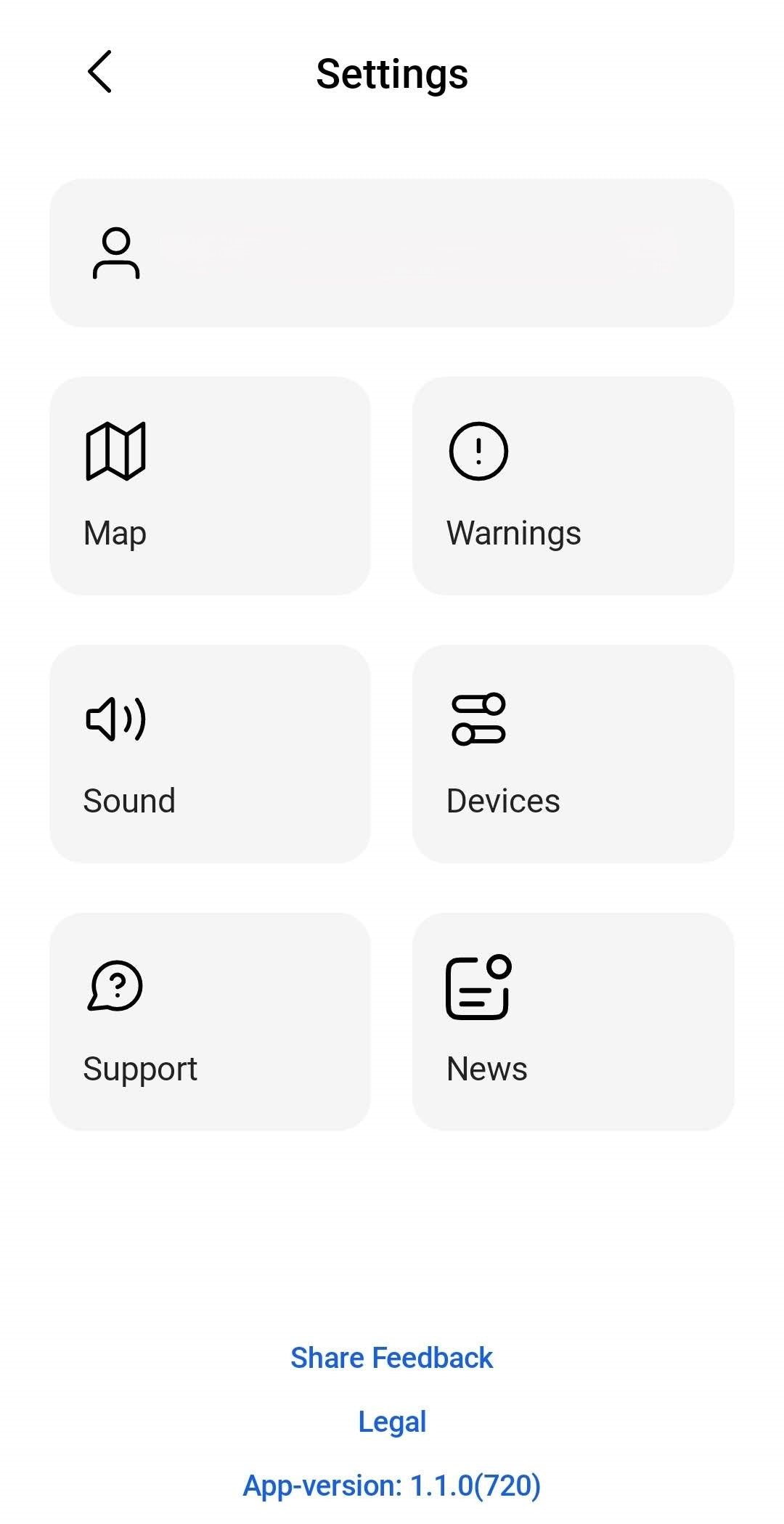
To add an additional Drive One device, open the app.
From the map view, click the cog to go to the menu. From the map click Devices.

From the bottom of the Drive One devices list, click "Add device" to add a new device.
Then follow the directions on how to add the new device to your account.
Get more help
For more help please visit https://driveone.eu/pages/get-help
LED GUIDE
| LED colour | Meaning |
|---|---|
| NO LED | Device is in sleep mode |
| Green LED | Device is connected |
| Blue dimming LED | Device is ready to connect, but no nearby device found |
| Blue LED | Warning about a fixed, mobile speed camera, trafic light camera or hotspot warnings |
| Red LED | Warnings about accident, or some other hazard on road |
| Yellow LED | Warning about car in emergency lane, Animal on road, slippery road, school road, Trafific jam, Road work |
| Red,Pink LED | Device disconnected/Connection lost |
| Light Orange LED | GPS signal missing |
| Green Single flash every x seconds | Device is connected |