

Drive One Pro Manual EN

Setup Drive One in the Drive One app
Start the Drive One app and follow the instructions on the screen.If you want to read about how to setup Drive One before you do it, please continue here.
The setup process
Follow these steps to setup the Drive One device.
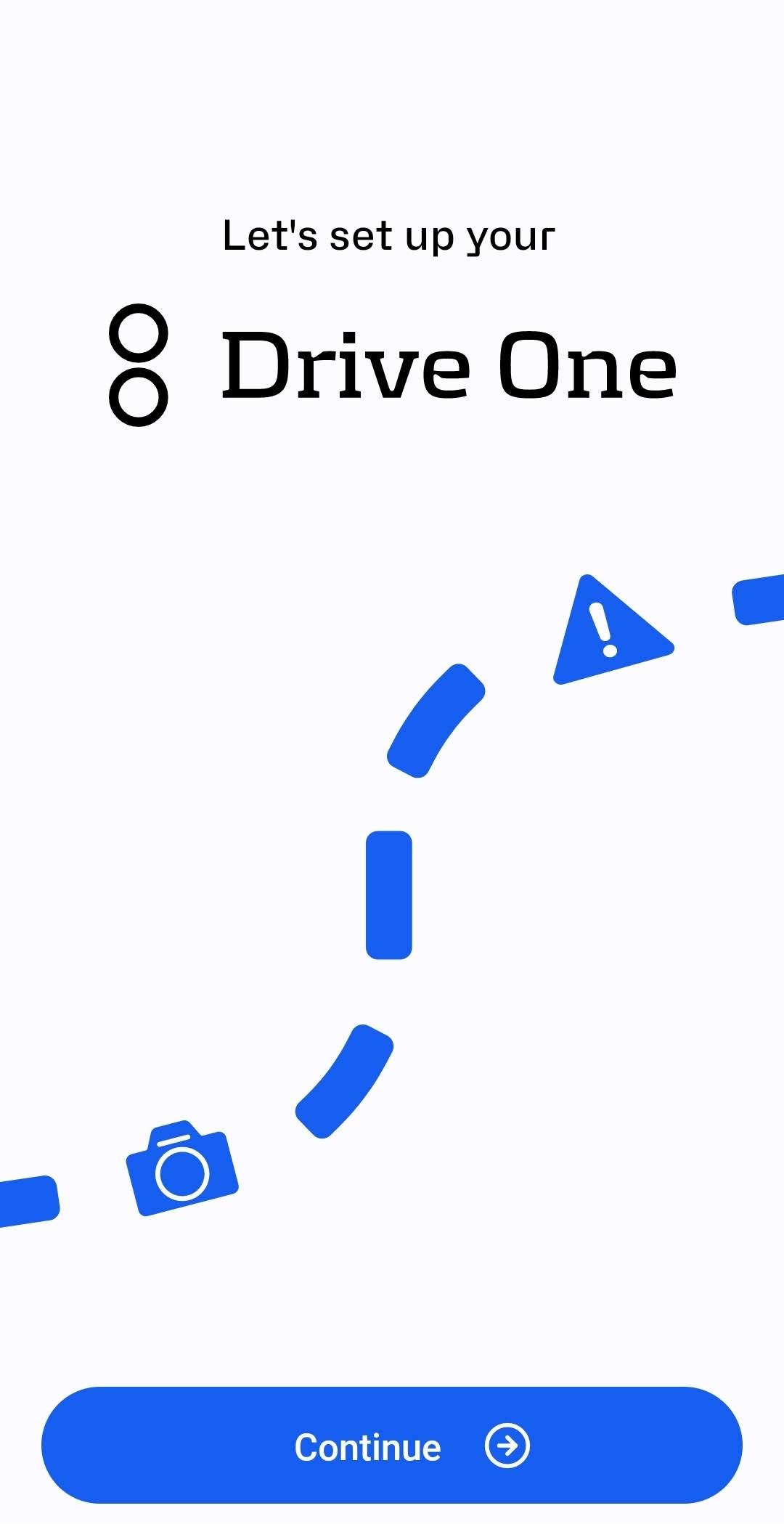
Collapsible content
Enter your email address
An email is then sent to the email address you entered.
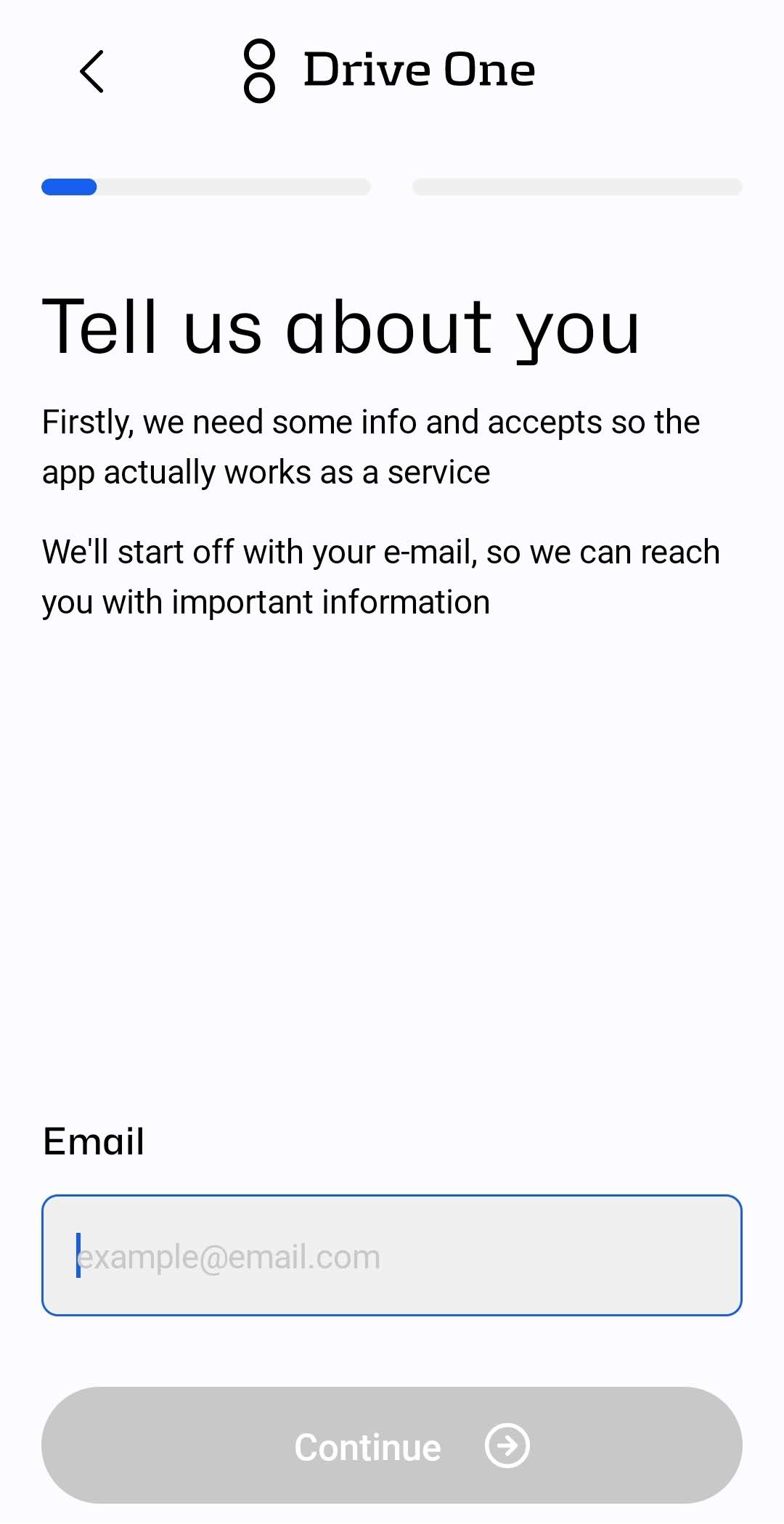
Confirm your email address
The email contains a verification code that you need to enter on this screen to confirm that your email address is valid.
When you continue, you can choose whether to accept or decline emails with news, tips, and tricks from us.
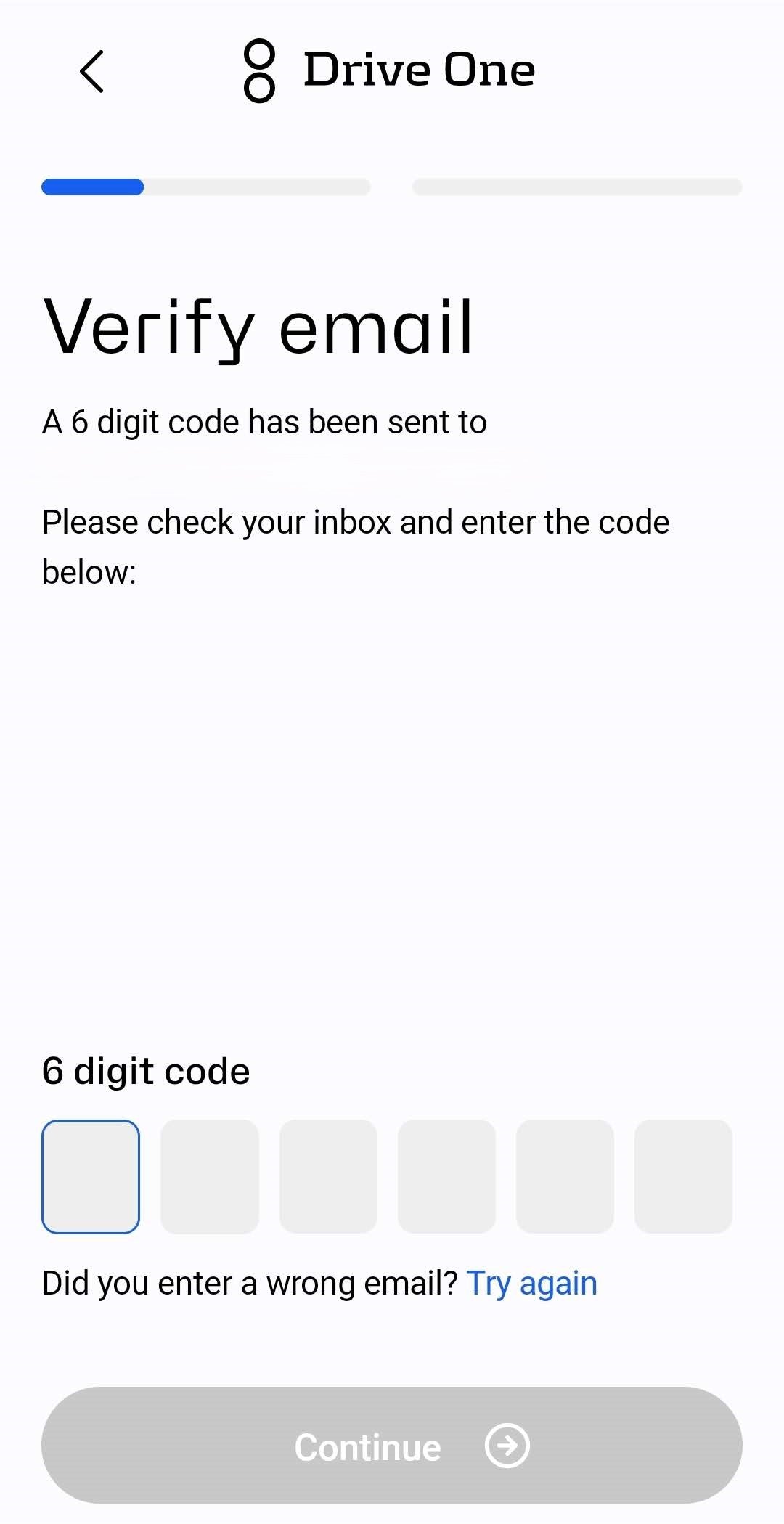
Marketing Accept and Privacy Policy link
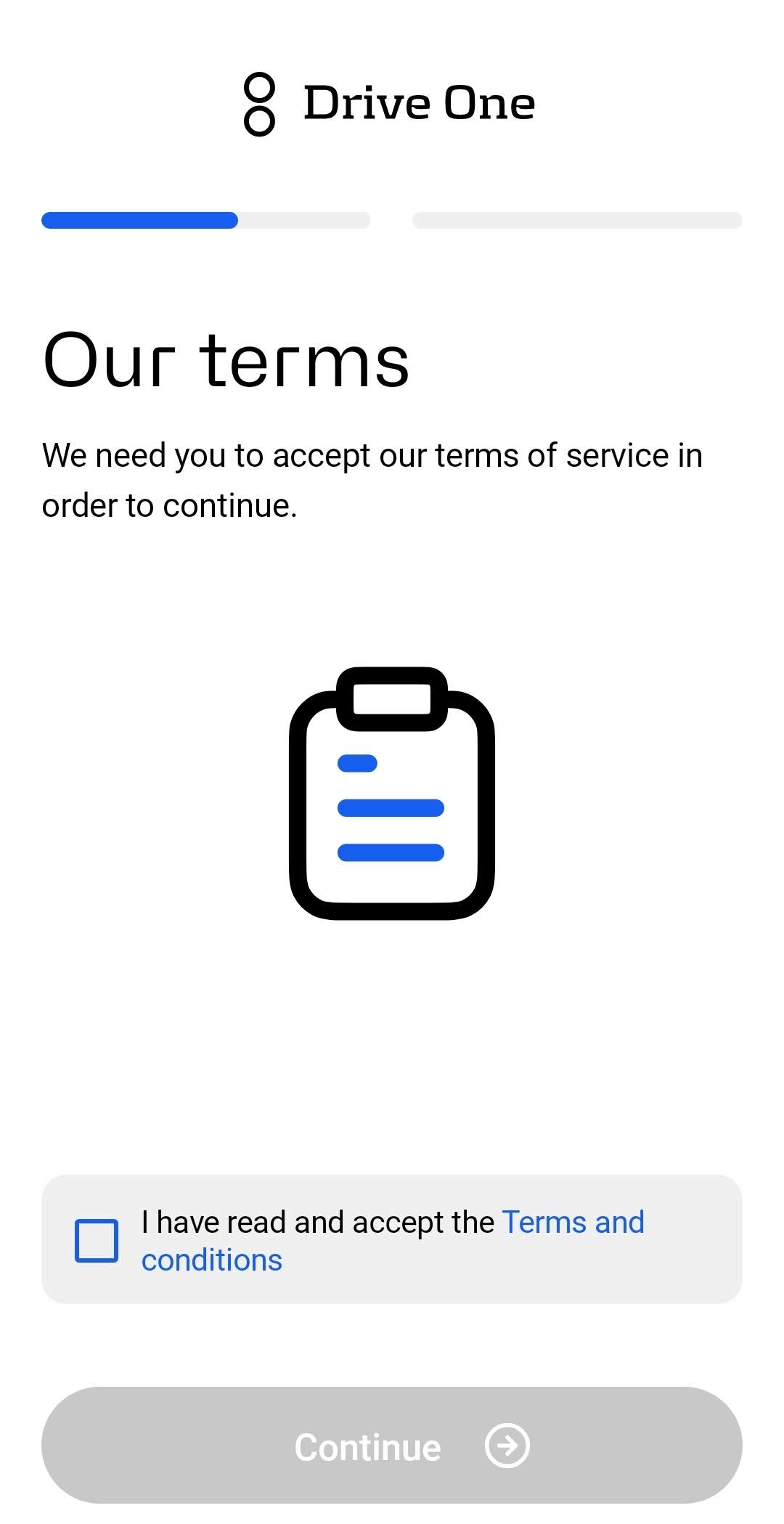
Accept terms and conditions
You must accept the terms and conditions to use the Drive One app and continue.
If you do not accept them, you will not be able to start and use the app.
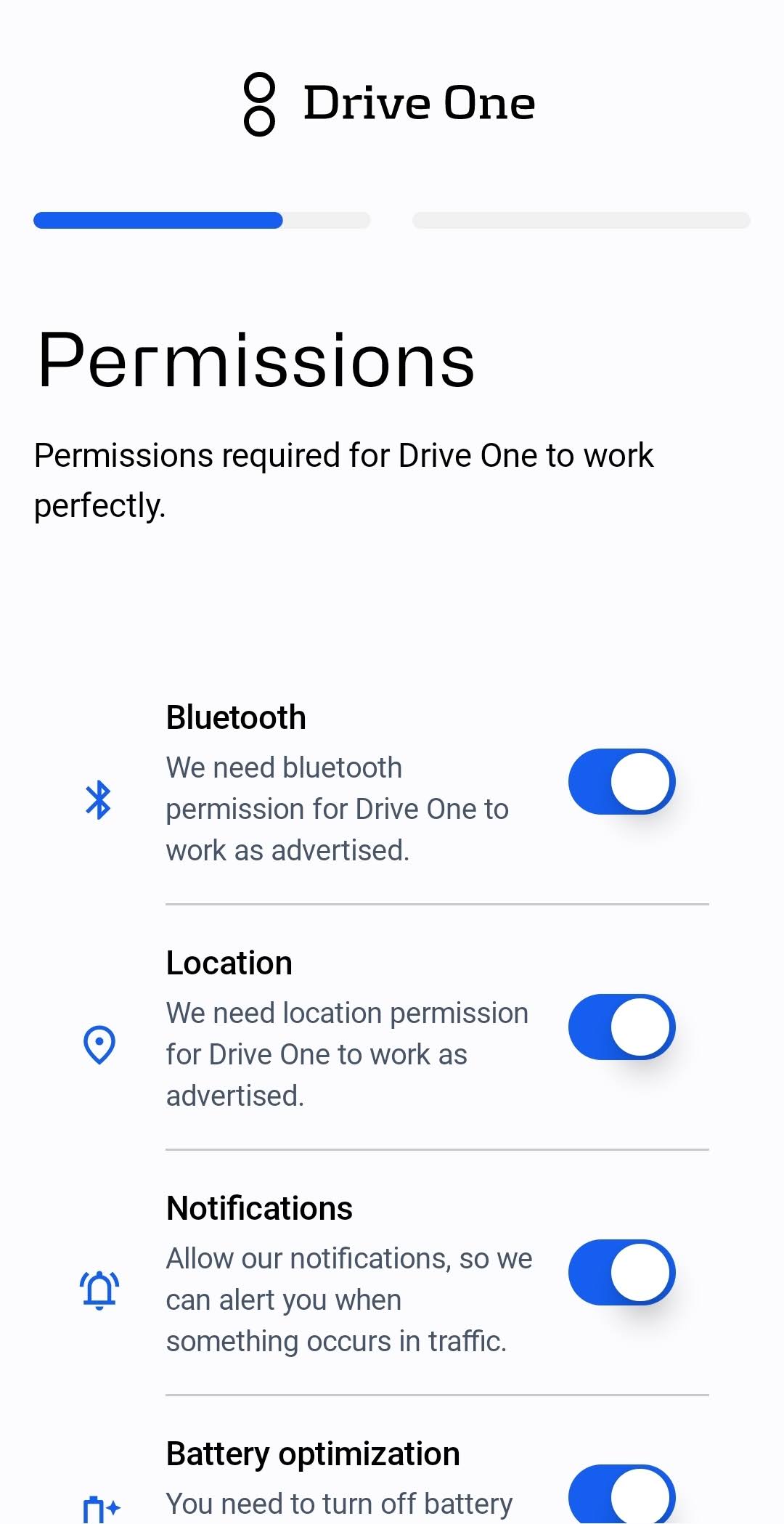
Grant permissions
On this page, you will be prompted to:
- Allow the Drive One app to access your location
- Allow notifications
- Enable Bluetooth
- Disable battery optimization (Android only)
These permissions are required for Drive One to work as expected and to ensure reliable warnings while driving.
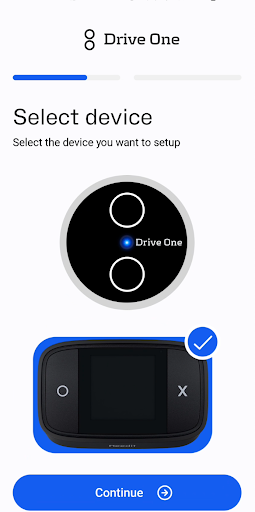
Ready for connection
You are now ready to connect your Drive One unit to the Drive One app.
Select the device you want to set up from the list.
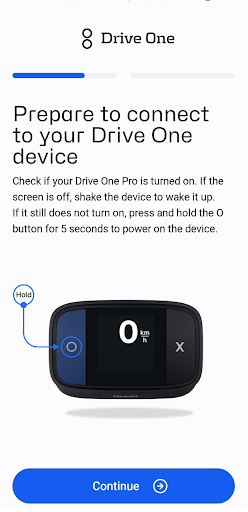
If your Drive One Pro device is turned off, press and hold the “O” button for 5 seconds to power it on.
Please note that on Android 16 and 17, you will see an additional permission that needs to be accepted on this page.
Connected Page
Your Drive One device is now connected to the Drive One app.
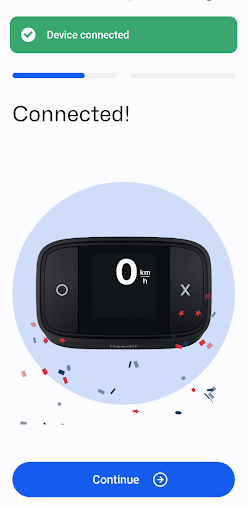
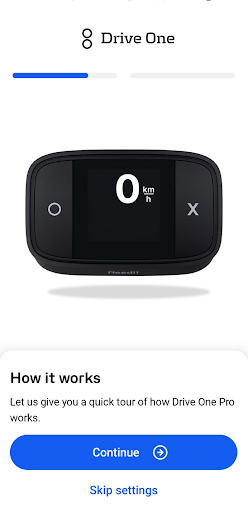
Quick app tour
Now the app will take you for a quick tour of how Drive One Pro works.
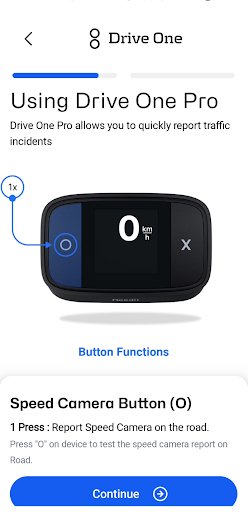
O report button
Use the O button when you see a speed camera.
Pressing the button will either confirm an existing report or create a new warning at your location, shared with other Drive One users.
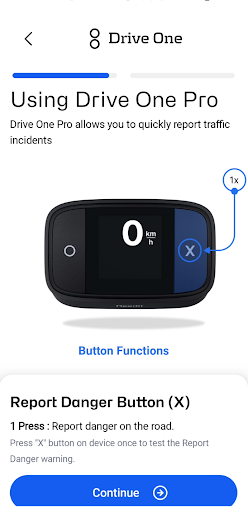
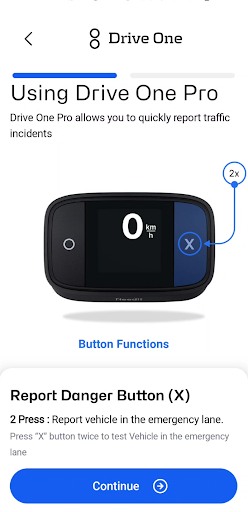
X report button
Use the X button to report dangers on the road.
• Press once to report a general danger
• Press twice to report a vehicle in the emergency lane
Your report is shared with other Drive One users at that location.
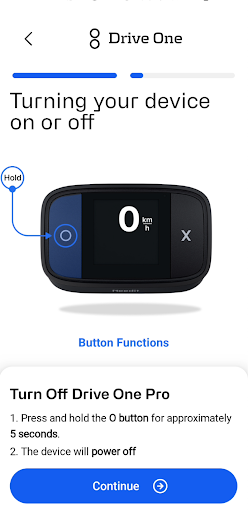
Turning Your Device Off
Turn Off Drive One Pro
- Press and hold the “O” button for 5 seconds to power off the device.
Please note: Drive One Pro will automatically power down after a period of inactivity (when the vehicle is not moving).
Manual power off is only recommended:
- When charging the device at home (to avoid connection sounds), or
- If the device will not be used for an extended period
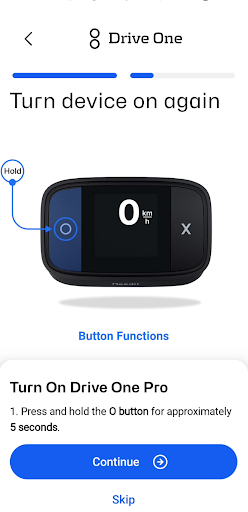
Turning Your Device On
Press and hold any of buttons for approximately 5 seconds until the device turns on.
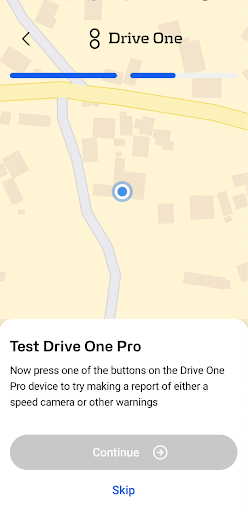
Test Reports
On this page, you can test how reporting works using the Drive One Pro device.
- Press any button to create a test report.
- These reports are not shared with other users.
- You can press the buttons as many times as you like.
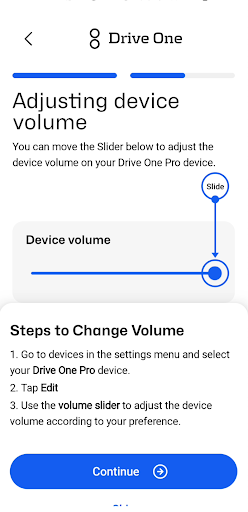
Adjusting device volume
You can move the Slider to adjust the device Volume on your Drive One Pro device.
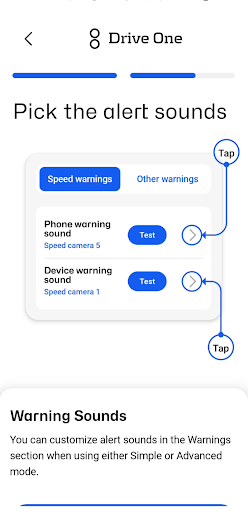
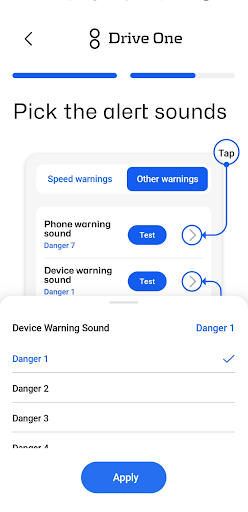
Pick and Test Alert Sounds
You can customize and test the warning sounds on your Drive One Pro device and your phone.
- Select your preferred alert sound
- Test the sound to hear how it will play
Changes are made separately for the device and the phone
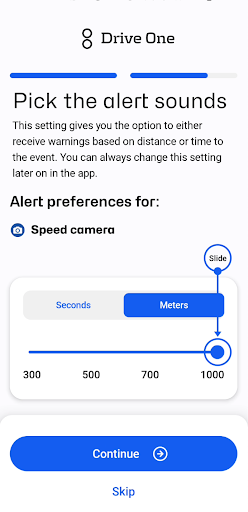
Warnings Customization
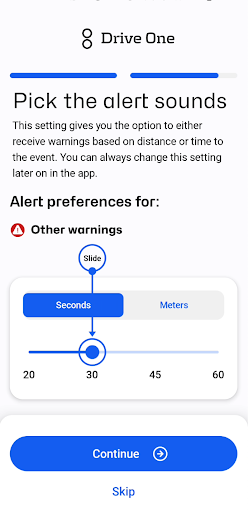
On this page, you can choose when you want to receive warnings.
First, select when you want to be warned about speed cameras.
Then, set the timing or distance for other warnings (e.g. fixed speed cameras, roadwork, etc.).
- Seconds:
Choose this option to receive warnings 20–60 seconds before reaching a speed camera
(20–60 seconds for other warnings). - Meters:
Choose this option to receive warnings 300–1500 meters before reaching a mobile speed camera
(300–1000 meters for other warnings).
You can always return to Menu → Warnings, then select the type of warning for which you want to adjust the alert sound.
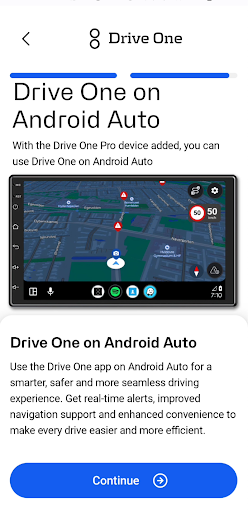
Drive One on Android Auto and CarPlay
With the Drive One Pro device added, you can use Drive One on Android Auto and Apple CarPlay.
On the car’s screen, you can see warnings reported by other Drive One users along your route.
- View real-time warnings directly on the car display
- Get early alerts about speed cameras, roadwork, and other hazards
- Drive more safely with shared community reports, without using your phone
Mounting the Drive One Unit in the Car
Mount and drive. Attach the Drive One unit to your windshield or dashboard, and you’re ready to go.
- Quick and easy installation
- The device can be easily removed without removing the mount
- Ideal for everyday use or switching between vehicles
USB‑C Cable & Charging the device
- Use the included USB‑C cable and connect it to a power source.
- Charge the device for at least 3 hours to reach a full battery.
Charging status:
- If the device is on, a charging animation appears in the top‑right corner.
- If the device is off, it charges silently.
To turn the device on or off while charging, press and hold the “O” button for 3–5 seconds.
How Drive One Works
Drive One works by sharing data from multiple sources and from a large community of Drive One users across Europe.
Drive One users can report incidents using the buttons on their device. When a report is made, the location (coordinates) is sent to Drive One’s servers and then forwarded to the Drive One app on your phone.
As you approach a reported location, a warning will sound on your Drive One device.
The same applies to other users: when you report an incident, they will receive a warning as they approach the location where you made the report.
Reporting Alarms
You can quickly report incidents directly from your Drive One Pro device:
- Press the “O” button once to report a mobile speed camera.
- Press the “X” button once to report a danger on the road.
- Press the “X” button twice to report a vehicle stopped in the emergency lane.
Reports are shared with other Drive One users to help improve road safety.
Confirm or reject warnings:
Confirming and Rejecting Warnings
When a warning can be confirmed, a warning icon along with a checkmark (✓) and an X will appear on the Drive One Pro device.
Confirm or reject the warning by pressing:
- Confirm: the O button
- Reject: the X button
If you and other users do not confirm a warning, it will gradually be downgraded and will eventually disappear as an active warning.

ALARM TYPES
- Mobile speed camera
- Fixed speed camera
- Traffic light camera
- Danger
- Car in emergency lane
- Animal on road
- Accident
- Slippery road
- Traffic jam
- Road work
- Warning
* School road and slippery road warnings are country‑specific and depend on the country where you are using the Drive One app.
Test Warning Sounds
You can test how warning sounds play on both your Drive One device and your phone.
Go to Menu → Sound settings, then scroll down to Test sounds.
Here you can:

- Test the volume on the external device
- Check that you can hear warning sounds on your Drive One device
Adding an additional Drive One unit
You can add as many drive one devices to your account as you need.
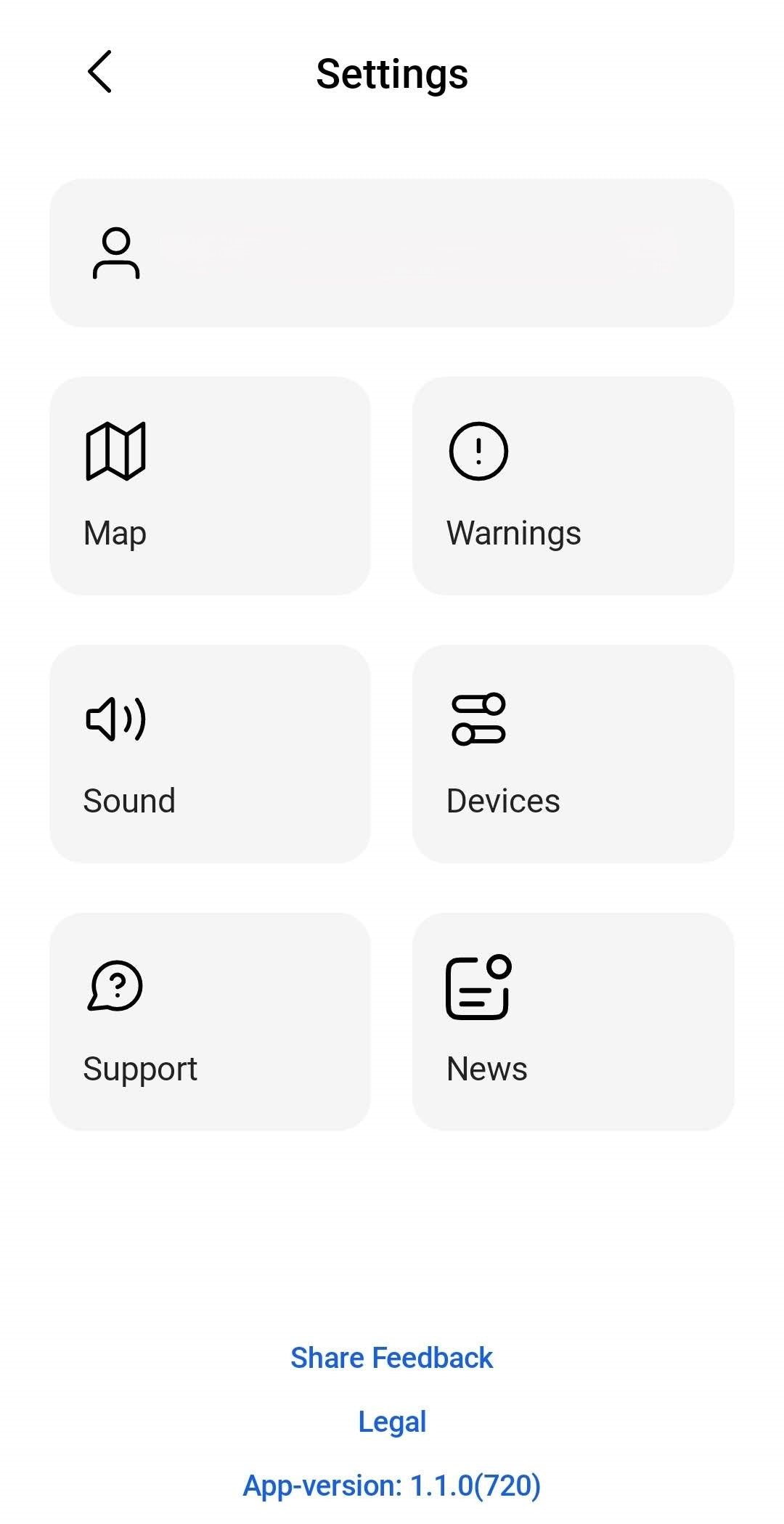
To add an additional Drive One device, open the app.
From the map view, click the cog to go to the menu. From the map click Devices.

From the bottom of the Drive One devices list, click "Add device" to add a new device.
Then follow the directions on how to add the new device to your account.
Get more help
For more help please visit https://driveone.eu/pages/get-help